
Graveyard Keeper 2 on Steam Deck: Performance and Playability
Planning to play Graveyard Keeper 2 on Steam Deck? Discover the latest on compatibility, performance tips, and how to optimize your handheld experience.
Table of Contents
The long-awaited sequel to the dark, humorous, and delightfully morbid management sim has arrived. As players prepare to dive into the grotesque world of Graveyard Keeper 2, many are wondering if they can take their undead army and town-building operations on the go. If you are specifically looking for information on Graveyard Keeper 2 Steam Deck compatibility, you’ve come to the right place.
Handheld gaming has changed the way we approach simulation titles, and for a game as addictive as this, the ability to manage a graveyard while lounging on the couch is a game-changer. In this guide, we will break down everything you need to know about playing Graveyard Keeper 2 on your Steam Deck, including performance expectations, control schemes, and how to get the best experience possible.
Understanding Graveyard Keeper 2 on Steam Deck
As of the current release window, the official status of Graveyard Keeper 2 Steam Deck support is listed as "Unknown" on the official Steam store page. However, "Unknown" does not mean "unplayable." Many titles in the simulation genre function perfectly on Valve’s hardware even before they receive the official "Verified" checkmark.
Because the game features full controller support—including compatibility with Xbox and DualSense controllers—the input mapping is already optimized for a gamepad layout. This is a massive positive indicator for handheld users, as it suggests that the UI and menu navigation were built with non-keyboard inputs in mind.
Why Your Handheld Experience Matters
Simulation games require precision and long sessions. Playing on a device like the Steam Deck allows you to automate production cycles during short commutes or extended play sessions without tethering yourself to a desk. Given the game’s deep crafting systems and quest-heavy structure, having a portable way to progress is vital for the modern gamer.
Performance Expectations and Optimization
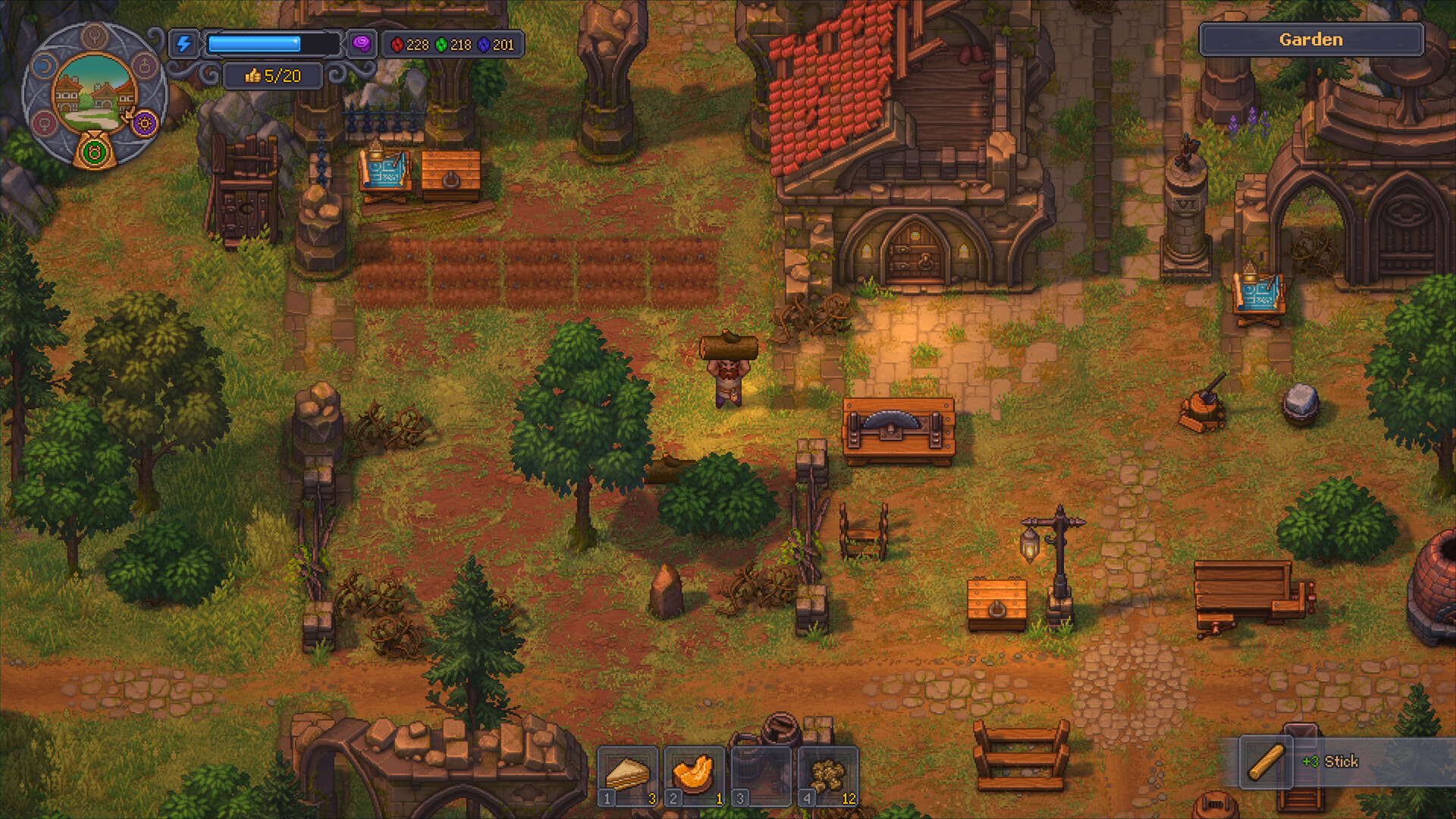
While the game is visually distinct with its 2.5D pixel art style, it still requires a stable frame rate to ensure that menus and character movement feel responsive. Based on the system requirements, the game is relatively lightweight, targeting modern PCs with modest hardware.
Hardware Requirements Overview
The following table outlines what your device needs to run the game effectively:
Feature
Minimum Requirement
Recommended Requirement
Processor
Intel Core i3 (13th Gen)
Intel Core i5 (13th Gen)
RAM
6 GB
8 GB
Graphics
GeForce GTX 1650
GeForce RTX 3060
Storage
4 GB
4 GB
Since the Steam Deck’s APU is highly capable of handling these specs, you should expect a smooth experience. If you encounter frame drops, consider the following quick-fix settings:
Performance Optimization Steps
Limit the frame rate to 40 FPS via the Steam Quick Access Menu to save battery life.
Disable unnecessary background processes in the SteamOS settings.
Use the "Native" resolution setting rather than upscaling to maintain pixel-perfect clarity.
Navigating the Controls and UI
One of the biggest hurdles for management sims on handhelds is the text size and menu density. Graveyard Keeper 2 relies on complex crafting recipes and inventory management.
Control Mapping Efficiency
Since the game supports full controller input, you will find that the Steam Deck’s trackpads can be used to mimic mouse precision if you find the analog sticks too slow for inventory sorting.
Action
Control Input
Why it works
Menu Navigation
D-Pad / Left Stick
Quick access to crafting logs
Crafting / Interaction
A Button
Standard confirm action
Camera / Map Panning
Right Trackpad
Superior precision for base layout
Inventory Management
Touchscreen
Faster item dragging and dropping
Community Insights and Early Impressions
According to recent Graveyard Keeper 2 Steam Deck community discussions, early testers of the demo have reported that the game feels quite natural on the device. While some users noted that text can be small, the ability to customize the Steam Deck’s back-button mappings allows players to assign "Quick Save" or "Map" functions to buttons that are easier to reach.
Common Player Feedback
Inventory Management: Players find the touch-screen interface superior for moving items between chests and the backpack.
Battery Life: Because the game is not graphically demanding, the battery life typically lasts between 3 to 4 hours on a full charge.
Cloud Saves: The game supports Steam Cloud, meaning you can seamlessly transition your progress from your desktop PC to your Steam Deck without losing a single item.
Strategies for Success on the Go
To excel in Graveyard Keeper 2, you must master the art of automation. Whether you are playing on a PC or a handheld device, the core loop remains the same: gather, process, and profit.
The "Automated Profit" Checklist
Focus on the Garden: Planting seeds early on is your primary source of consistent income.
Zombie Helpers: Utilize the undead to handle the heavy lifting while you focus on questing and town restoration.
Quest Prioritization: Always check your journal for new town requests, as these are the fastest way to unlock new technology trees.
Avoid Common Mistakes
Do not attempt to hoard every single resource in your inventory. Use the local storage chests near your production stations to keep your carrying capacity high for exploration and questing.
Frequently Asked Questions (FAQ)
Q: Is Graveyard Keeper 2 officially "Verified" for Steam Deck?
A: As of now, the status is "Unknown." However, because it has full controller support and modest system requirements, it plays very well on the device.
Q: Can I use my demo save file in the full game on Steam Deck?
A: Yes! The developers have confirmed that your progress from the demo carries over to the full version, and your Steam Cloud saves will sync automatically between your devices.
Q: Does the game run at 60 FPS on the Steam Deck?
A: Yes, given the game's 2.5D nature and relatively low hardware requirements, you can expect a stable 60 FPS in most scenarios. You may choose to lock it to 40 or 30 FPS to extend battery life during long sessions.
Q: Are there any specific settings I should change for the best experience?
A: We recommend adjusting the UI scale if you find the text difficult to read, and utilizing the back buttons on the Steam Deck for quick menu access to streamline your management tasks.
By following these tips, you will be well on your way to becoming the most successful—and perhaps the most grotesque—manager in the kingdom. Whether you are at home or on the move, your graveyard is in good hands.